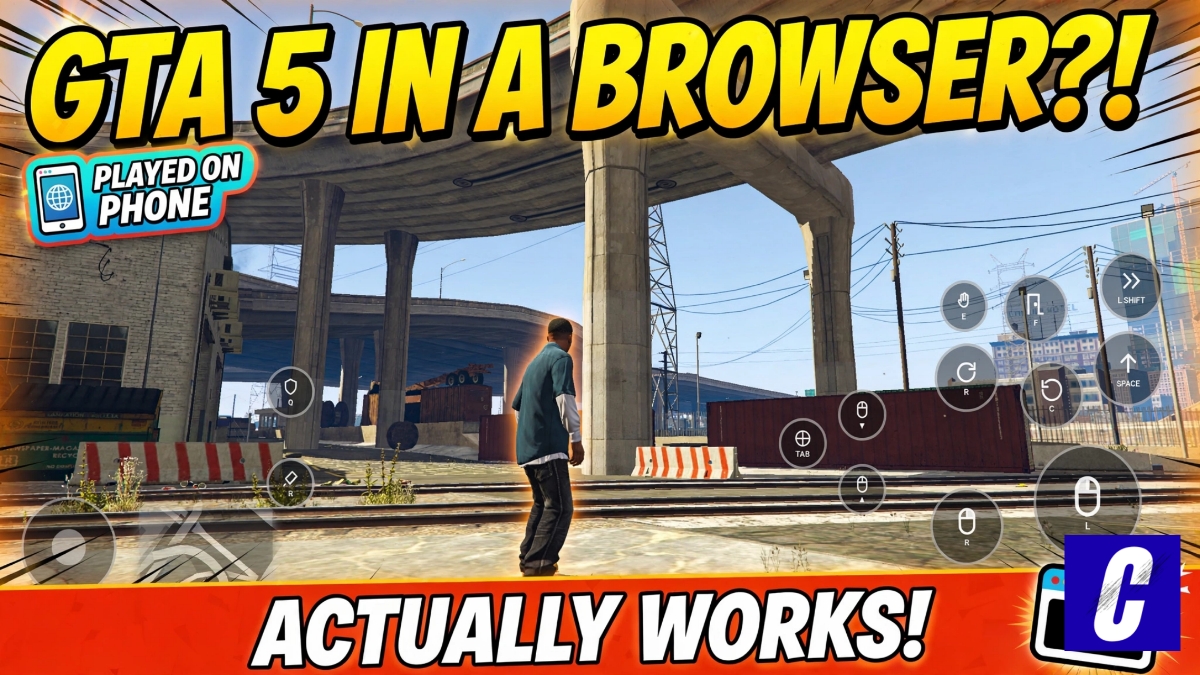
Last night, curiosity got the better of me. I clicked a random link on my phone, half-expecting a sketchy redirect or a broken page, and ended up steering Franklin down Vinewood Boulevard right inside a regular browser tab. No sideloaded APK, no remote desktop apps, and no console humming away in the background.
Naturally, that turned into a late-night rabbit hole: can you actually play GTA 5 on a mobile phone right now without jumping through dozens of shady hoops?
The short answer is yes, but the methods are completely different depending on whether you want a wild web experiment or a stable, everyday playthrough.
1. FivePlay (GrandV): Running Directly in a Browser Tab
This is easily the weirdest and most impressive thing I tested.
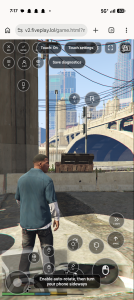
A community project called FivePlay (hosted at v2.fiveplay.lol, often referred to as “GrandV”) actually attempts to compile and run GTA V assets right in your mobile browser using WebGPU. It isn’t streaming video from a remote server—your phone’s actual hardware is doing the heavy lifting inside the tab.
On a relatively recent phone, it booted up surprisingly well. The interface gives you a complete on-screen controller overlay: dual virtual sticks, sprint/jump toggles, and mapped action keys for basic interactions. You get access to a bare-bones Story Mode and a Sandbox setup, alongside an option to manually import and export local save files.
The Catch
Let’s be realistic about what this is:
- Hardware demanding: Because WebGPU needs real graphical muscle, older or budget handsets will either lag to a crawl or fail to load the shaders entirely.
- Completely unofficial: There is zero Rockstar involvement here. It uses copyrighted assets and branding openly, meaning it could get slapped with a DMCA takedown tomorrow morning.
- Fragile saves: Everything saves to your browser’s local cache. Clear your browsing data or close the wrong session, and your progress vanishes unless you hit that manual “Export” button regularly.
The good news? It didn’t trigger any typical red flags during my test. There were no shady pop-ups, forced ad loops, or demands to download third-party profiles. It’s essentially a massive community tech showcase with a crypto tip jar. Treat it as a neat experiment to mess around with for an hour, not the place where you try to 100% the story.
2. Cloud Streaming: The Practical, Stable Way
If you actually want to sit down and finish missions, cloud streaming is still the only method that feels like playing a finished commercial product. Your phone just acts as a monitor while a remote server handles the game engine.
Boosteroid
If you already bought GTA 5 on Steam or the Epic Games Store, Boosteroid is usually the most straightforward pick. You run it directly through a mobile browser window, log into your digital store account, and let their servers run your existing copy. Pricing hovers around €13 to €17 month-to-month, but it drops closer to €7.50 a month if you commit to a year. Because it ties back to Steam/Epic, your cloud saves stay synced with your PC progress.
Xbox Cloud Gaming (xCloud)
The cleanest interface by far: you just visit [xbox.com/play](https://xbox., pin the web app to your home screen, and launch. The major catch is catalog availability. GTA 5 rotates in and out of the Game Pass library regularly (it cycled out earlier this spring), so you have to check whether it’s active before paying for a subscription. If you do use it, keep in mind that cloud-only access is tied into higher subscription tiers and subject to service terms depending on your region.
Shadow PC
Shadow doesn’t stream just the game; it rents you an entire Windows desktop in the cloud. You open their mobile client, launch Steam or the Rockstar Games Launcher, and run whatever you want—including custom script mods. It works well, but at roughly $30 a month, it’s total overkill unless you plan on using that virtual PC for other PC-only work.
(Note: Don’t bother checking GeForce NOW for this one. Rockstar has famously kept GTA off Nvidia’s service for years.)
What You Need to Make It Tolerable
Trying to drive a getaway car or survive a shootout using greasy on-screen touch glass will ruin the fun in about four minutes. If you want this to feel like an actual handheld console:
- Grab a physical controller. A basic Bluetooth Xbox pad, a PlayStation controller, or a clip-on mobile cradle turns this from a frustrating gimmick into an actual gaming setup.
- Stick strictly to 5GHz Wi-Fi. Don’t bother testing this on 2.4GHz home bands. The packet loss and micro-stutter will make driving impossible. Sit reasonably close to your router.
- Keep the charger nearby. Decoding high-bitrate video streams while keeping your phone display cranked to maximum brightness eats through battery percentage remarkably fast.
- Don’t obsess over 1080p. If your connection hiccups, drop the stream quality to 720p. On a screen that’s only six inches across, the compression is barely noticeable, but the latency drop makes driving feel ten times sharper.
The Verdict
If you just want to see something cool right now without spending a dime, load up FivePlay in your mobile browser and see if your phone’s chip can handle it. Just don’t get emotionally attached to your save file.
If your goal is to genuinely play through the Los Santos storyline during your lunch break, sync your Steam account to a service like Boosteroid, clip a controller onto your phone, and skip the browser experiments entirely.